Create your first project
Use this tutorial when you are starting from the Projects dashboard and want to create the first project from a source video. The example screenshots use a gaming video source, but the same flow works for uploads, YouTube videos, public Google Drive video files, Twitch VODs, Kick VODs and clips, and X video posts.
Key points
- Click New project from Projects, then choose AI Clipping.
- Upload a video file or import a YouTube, Google Drive, Twitch, Kick, or X video to create the project source.
- Open AI Clipping from the project, review the setup steps, and click Generate Clips when you are ready to spend credits.
Before you start
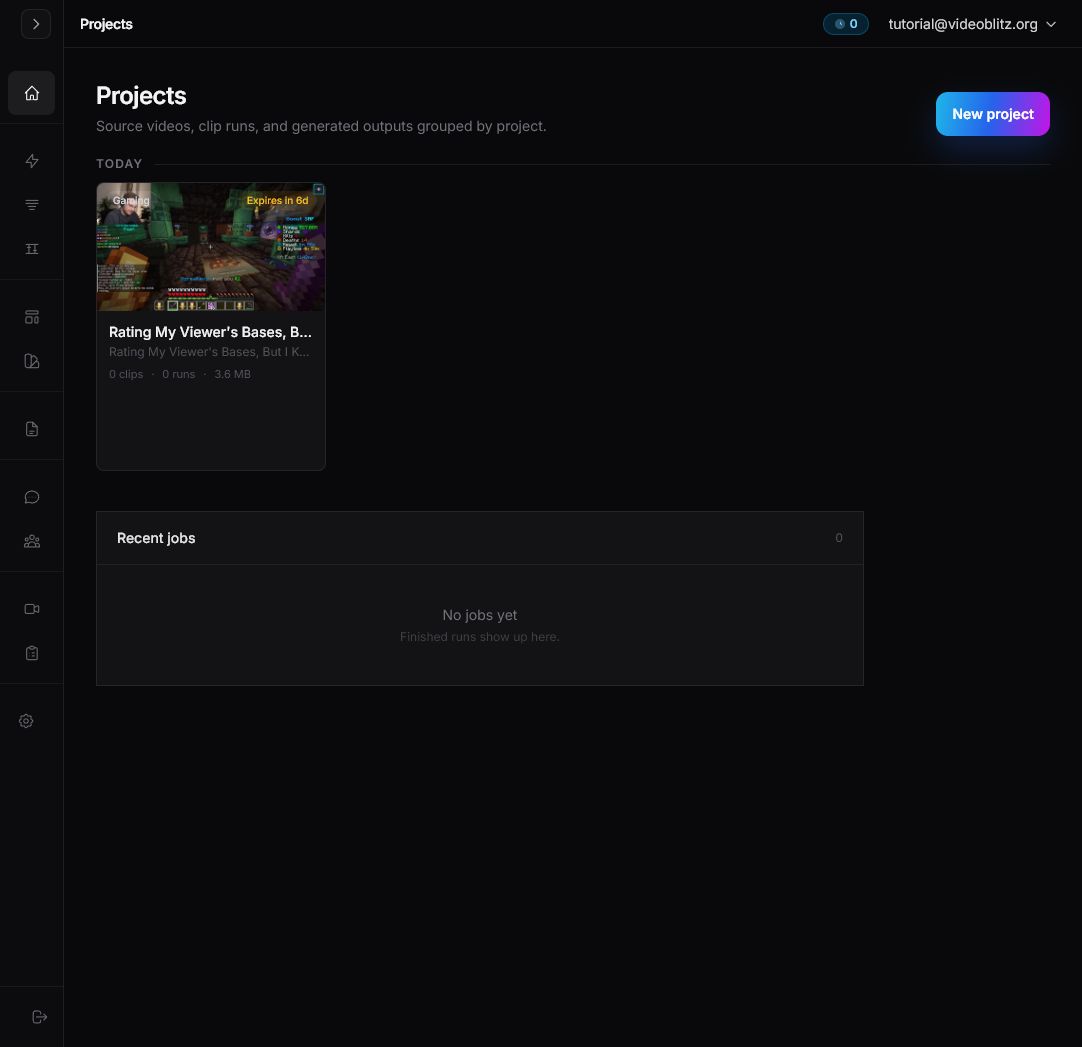
A project starts with one source video. You can create the project from a file upload, a YouTube video, a public Google Drive video file, a Twitch VOD, a Kick VOD or clip, or an X video post.
Generating clips uses credits based on the amount of source video processed. You can upload and review the setup first, then submit the run only when the estimate and settings look right.
Step 1: Click New project
From Projects, click New project in the top-right corner.
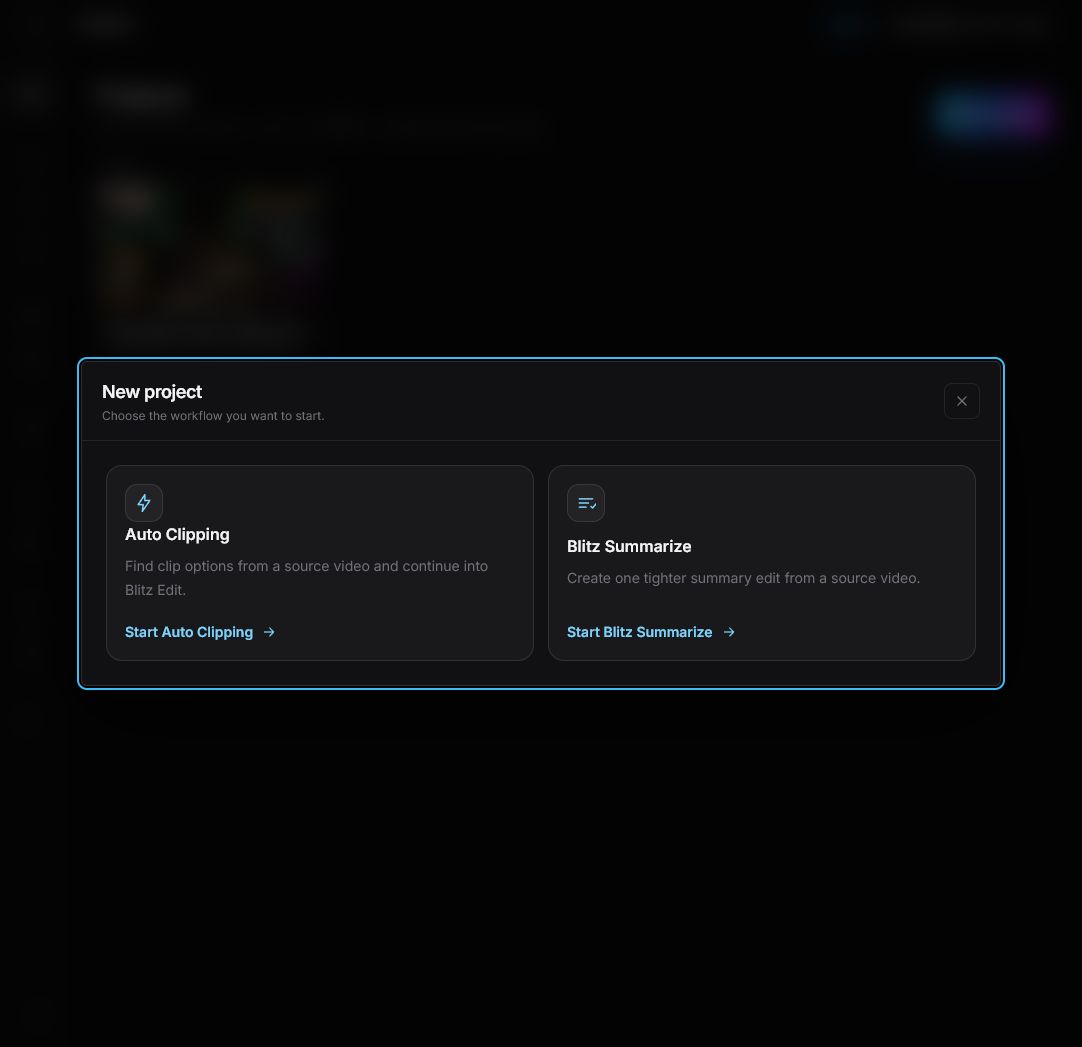
Step 2: Choose AI Clipping
In the New project dialog, click Start AI Clipping. This opens the source upload step for a clip-generation project.
Step 3: Upload or import the video
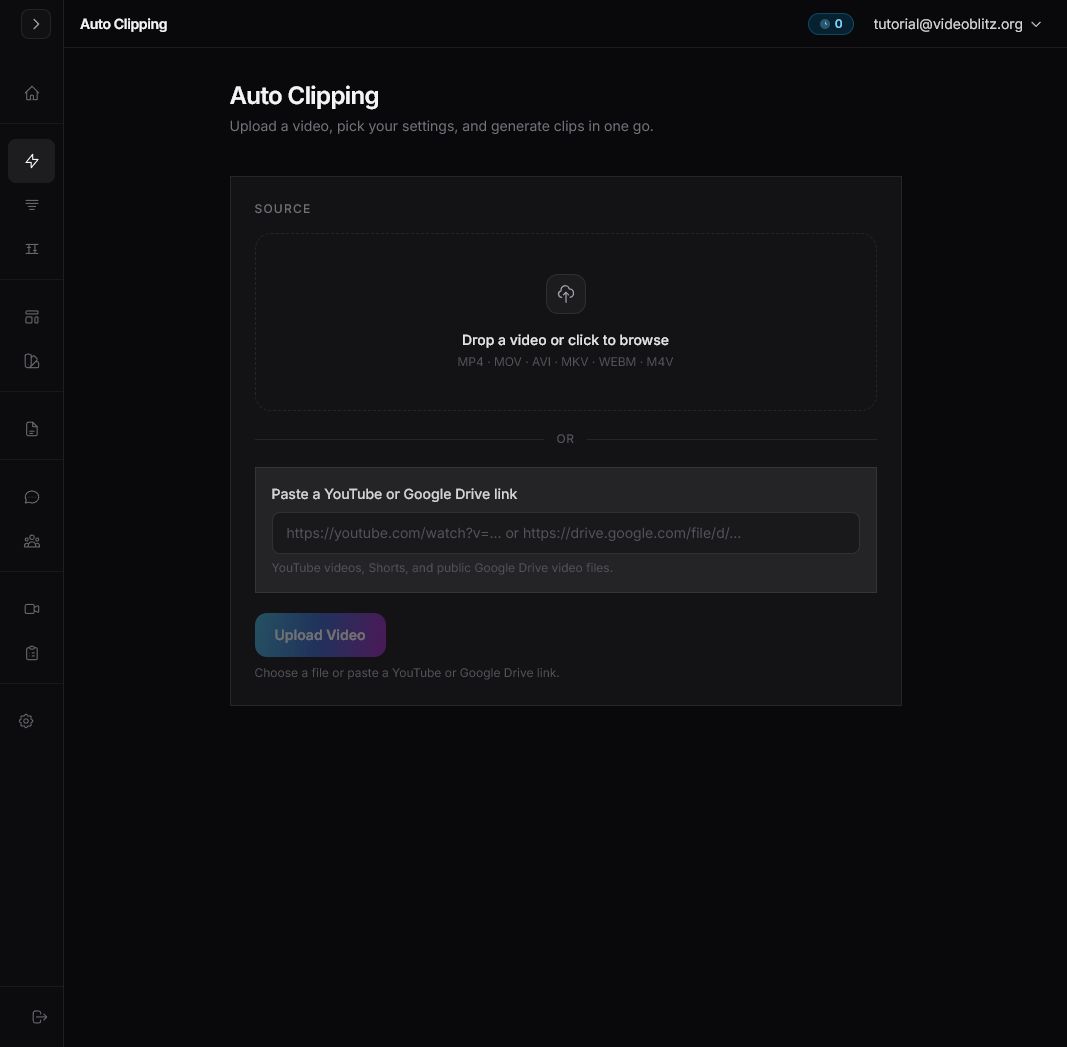
Drop a video on the upload area or click the upload area to browse for a file. You can also paste a YouTube, public Google Drive, Twitch, or X video link.
After the source finishes uploading or importing, Videoblitz saves it as the project source. The screenshots in this guide use a gaming video file named Rating My Viewer's Bases, But I Keep Getting Trolled.
Step 4: Open the project
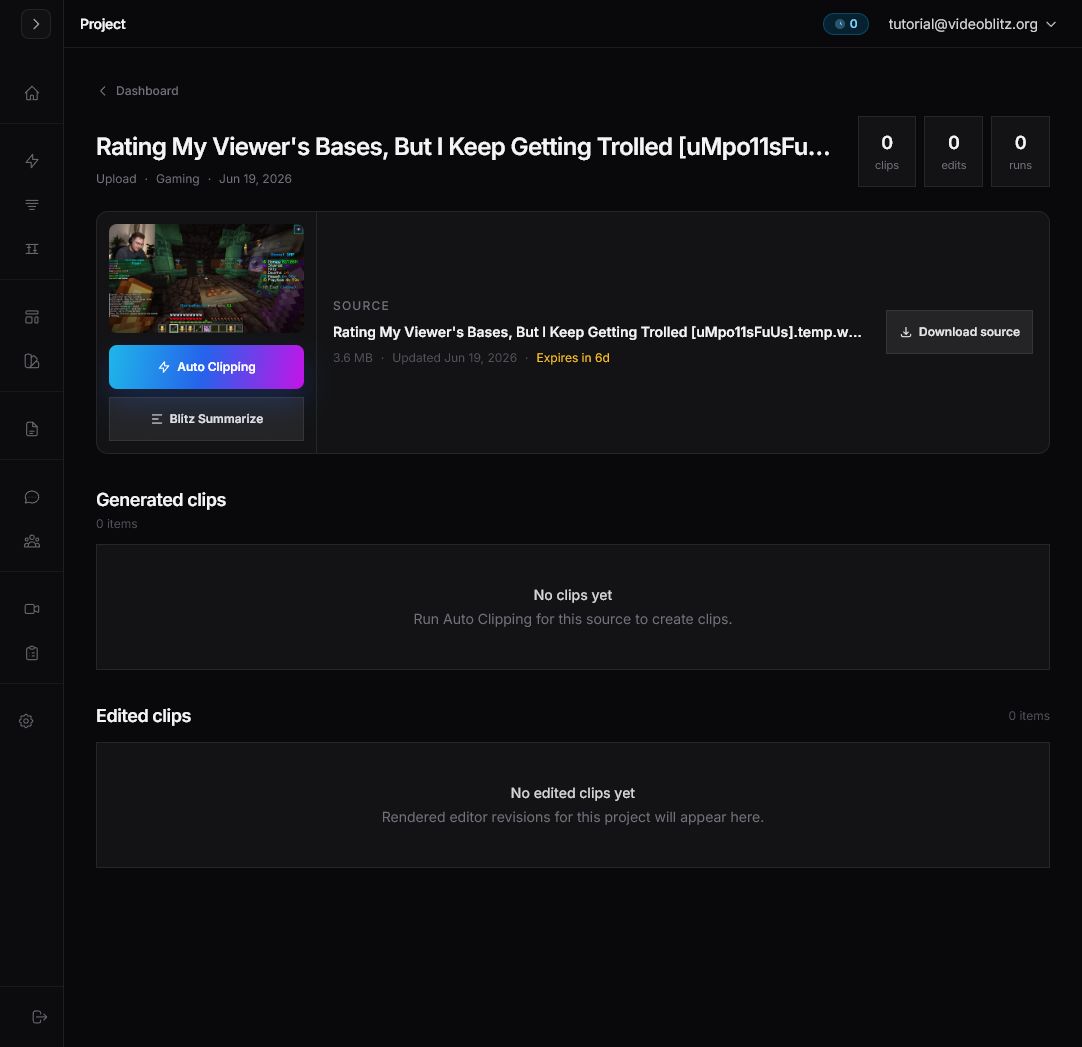
The project page shows the saved source video, source download action, and empty clip sections. Click AI Clipping on the source panel to start a run from this project.
Step 5: Confirm the source and category
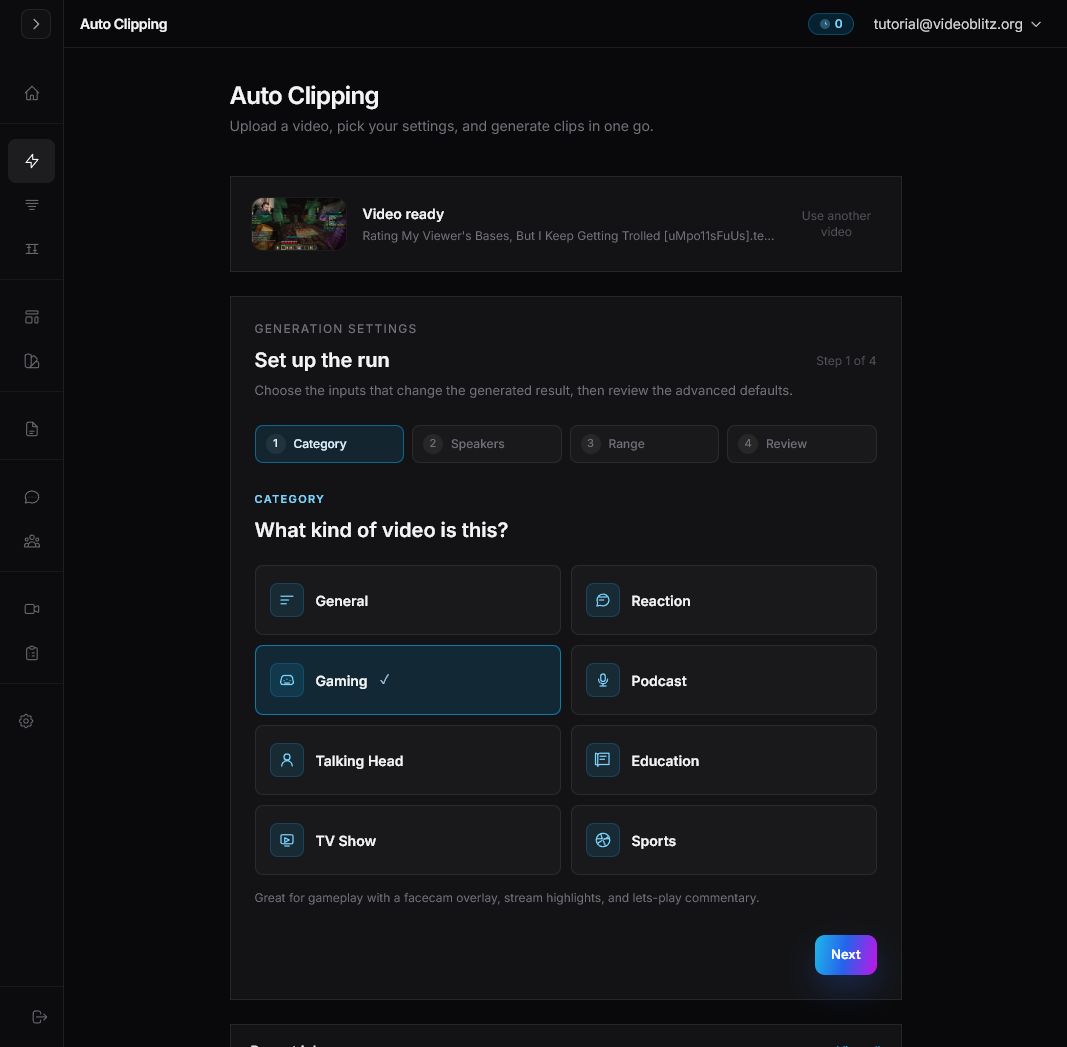
AI Clipping opens with the selected source at the top. Choose the category that best describes the video, then click Next.
Step 6: Choose speaker setup
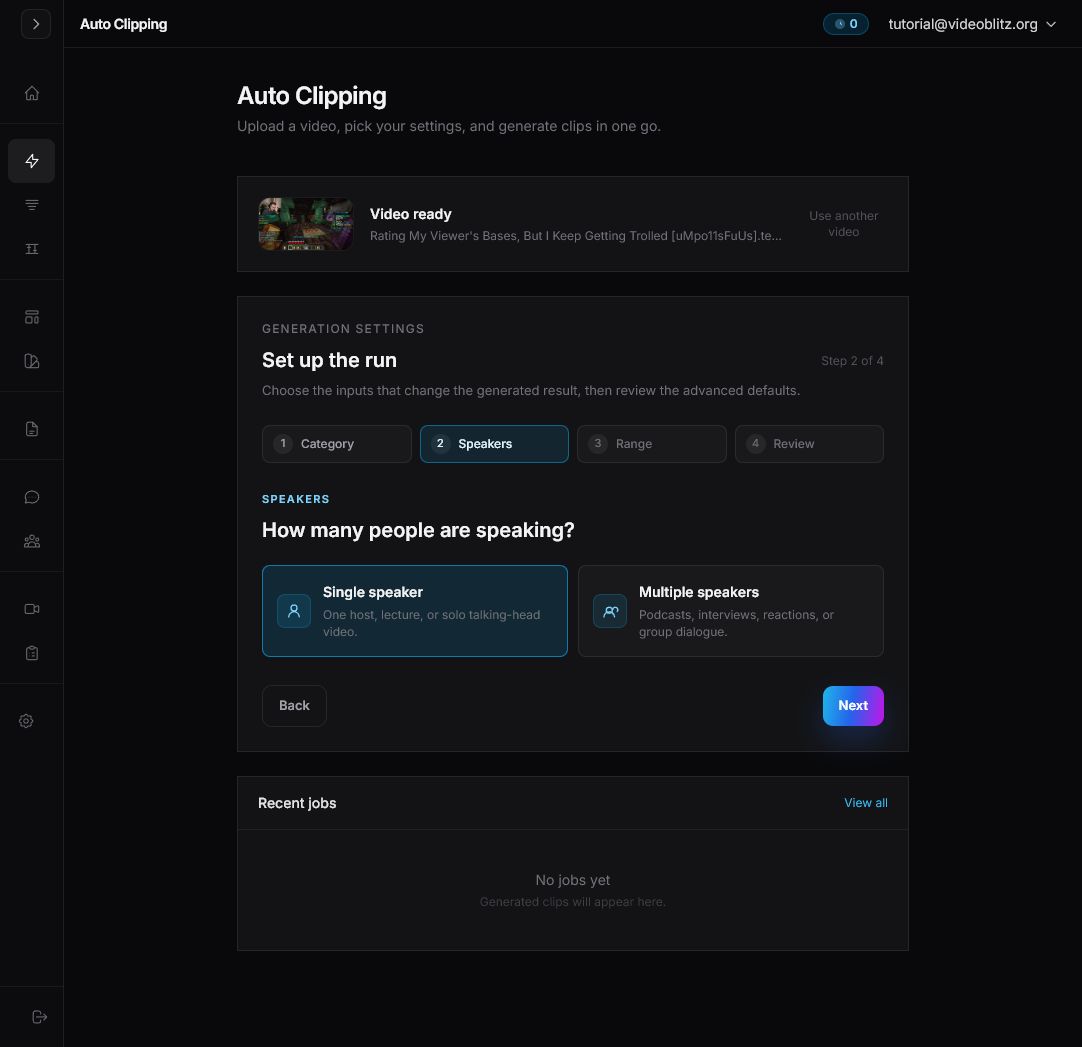
Choose Single speaker or Multiple speakers based on the source video. This helps Videoblitz prepare the clipping run for the kind of dialogue in the video.
Step 7: Choose the processing range
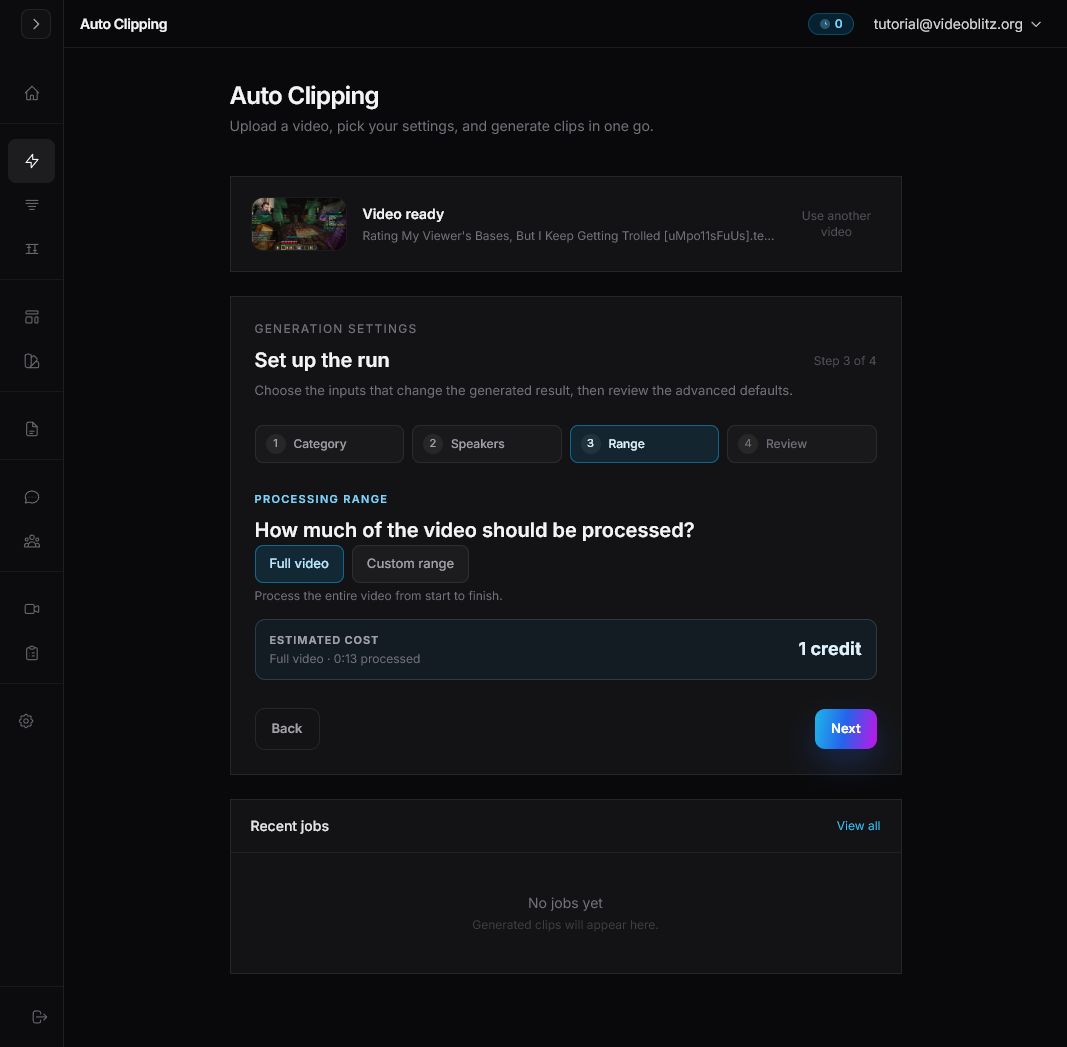
Use Full video when the whole source should be considered. Use Custom range when you only want clips from a specific part of the video.
Check the estimated cost before continuing. Every clipping job has a 10-credit minimum.
Step 8: Review the run
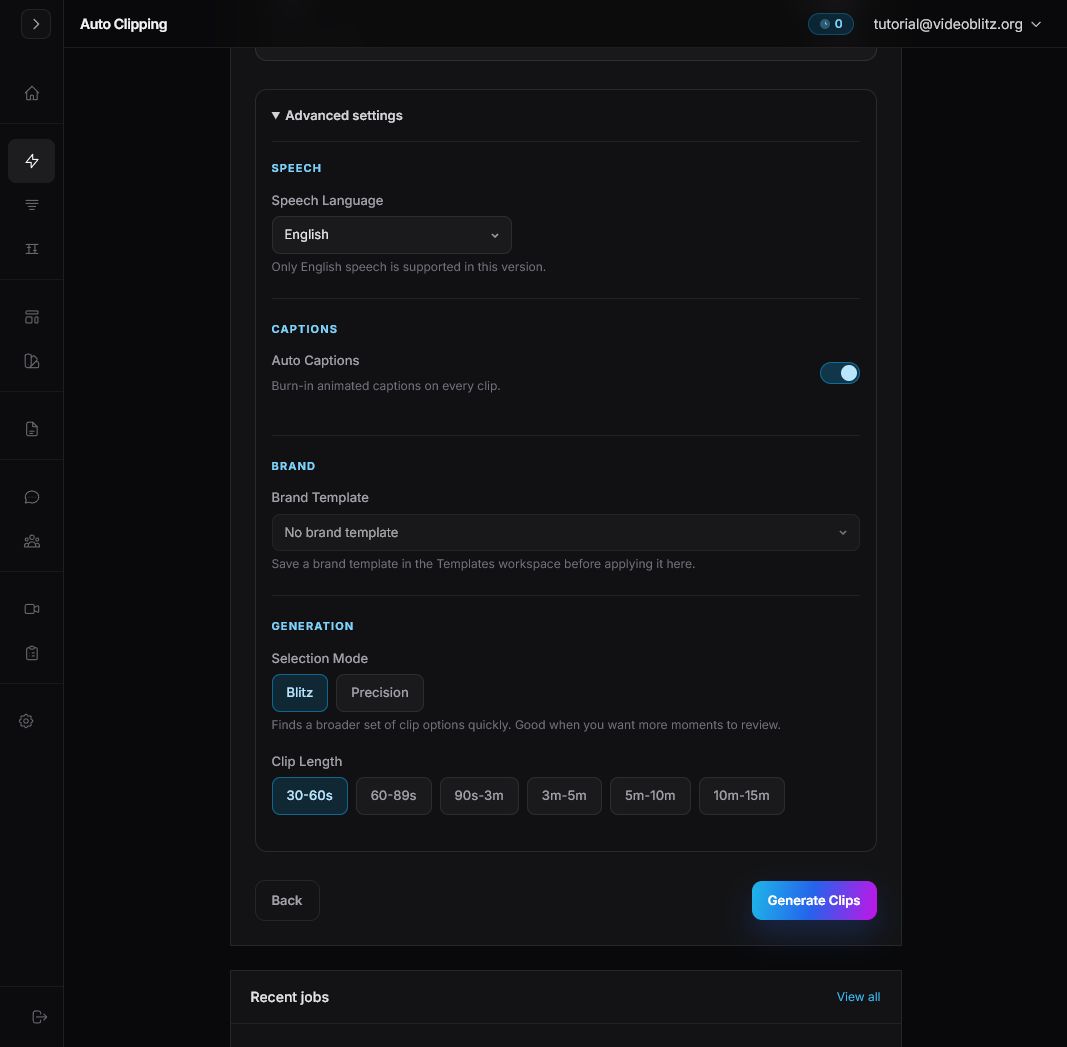
Review the selected setup before submitting. Open Advanced settings if you need to change speech language, captions, brand template, selection mode, or clip length.
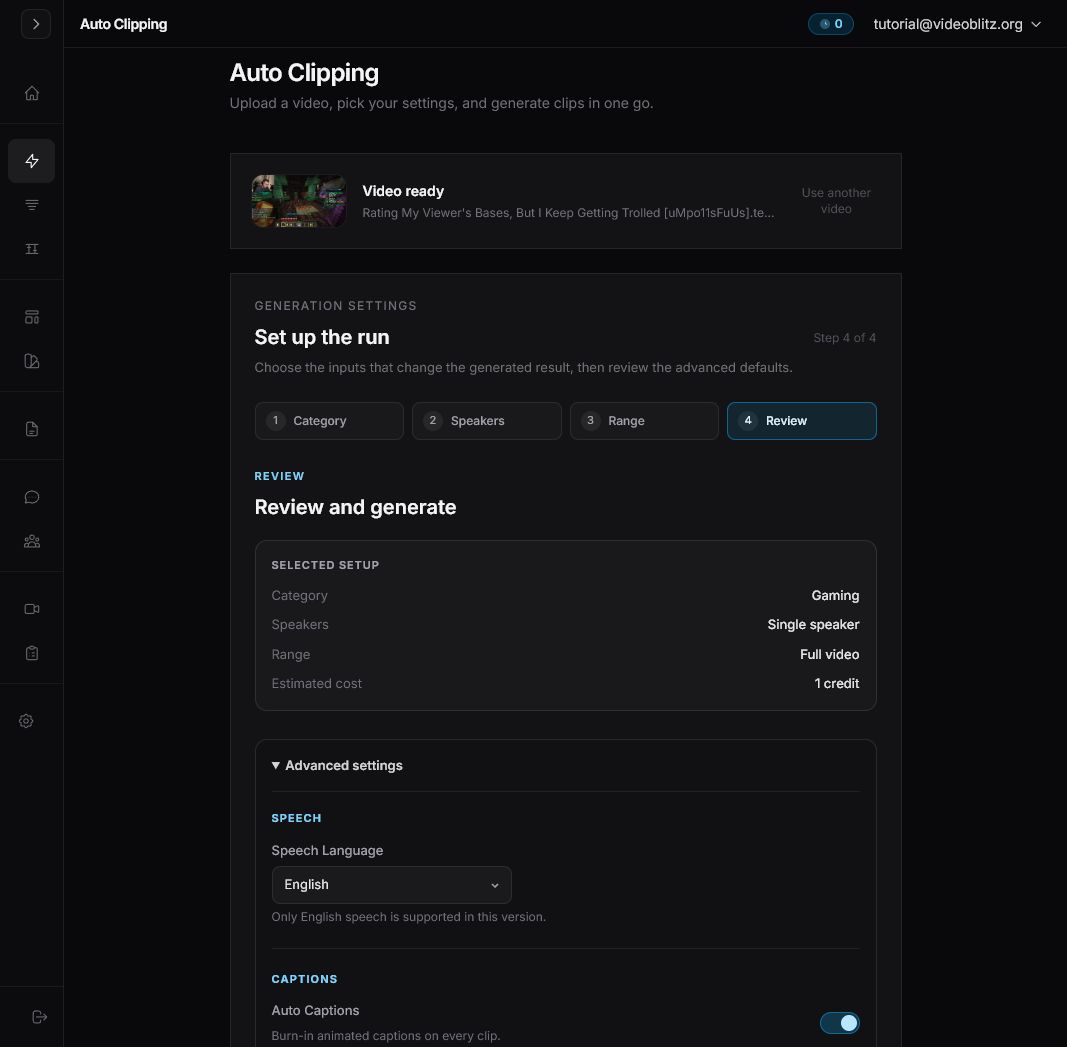
Step 9: Click Generate Clips
When the settings and credit estimate are correct, click Generate Clips. Videoblitz creates a job and the generated clip options appear in the project when the run finishes.
If your credit balance is too low, add credits first and return to this review step before submitting.