Delete your account and user data
Use this guide when you want to permanently remove your Videoblitz account and the user data connected to it. Account deletion is immediate and cannot be undone, so only complete the final step when you are sure you no longer need the account, projects, media assets, or subscription access.
Key points
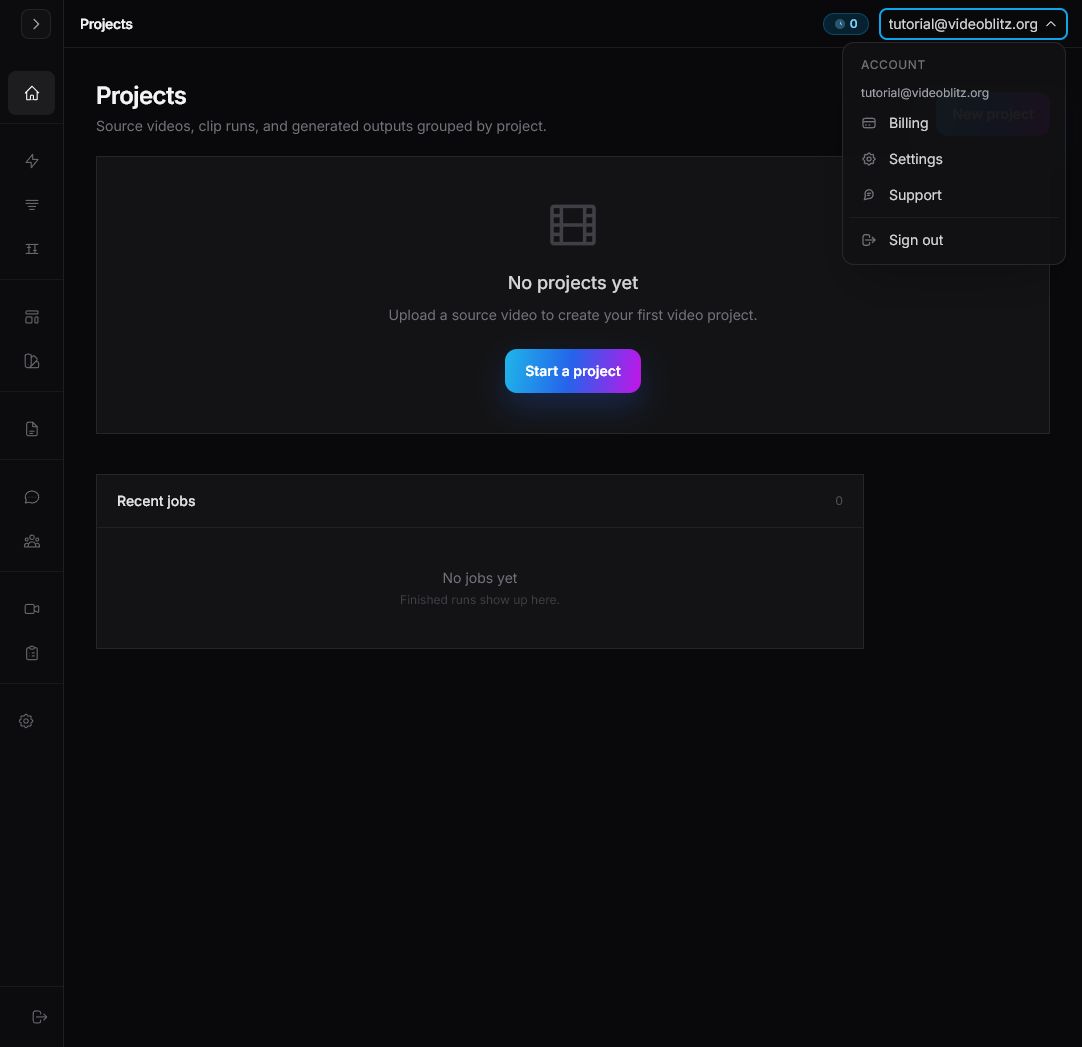
- Open Settings from the account menu in the top-right corner of the dashboard.
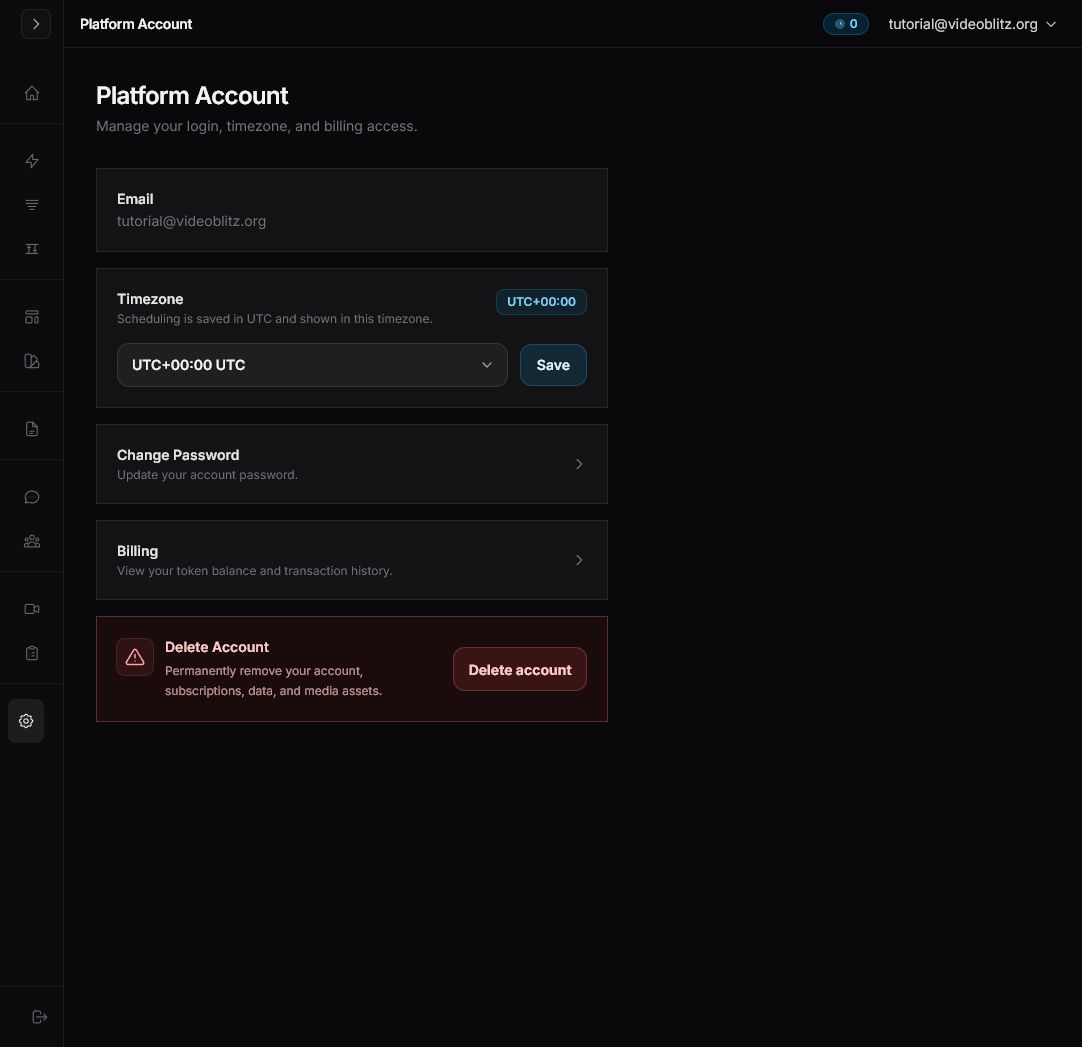
- Use the Delete Account section on the Platform Account page.
- Enter your current password, type DELETE, and submit only when you are ready to permanently delete the account.
Before you delete
Account deletion permanently removes the account, related user data, media assets, and active subscription state. Download anything you need before starting this flow.
If your account does not have a usable password, set a password first. The delete form requires your current password plus the typed confirmation word DELETE.
Step 1: Open the account menu
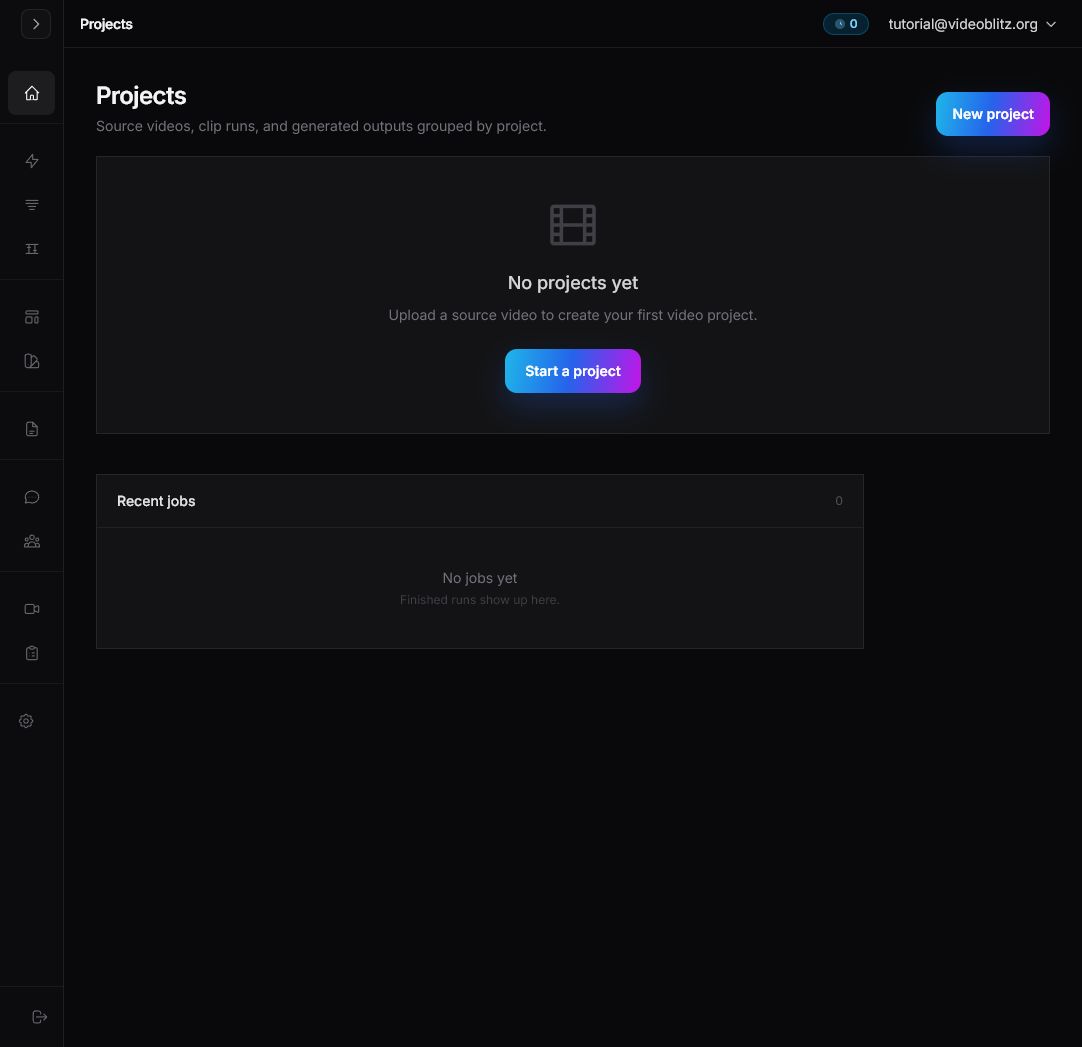
From the dashboard, click your email address in the top-right corner. This opens the account menu. In that menu, click Settings.
Step 2: Find Delete Account
The Settings link opens the Platform Account page. Scroll to the Delete Account section and click Delete account.
Step 3: Review the warning
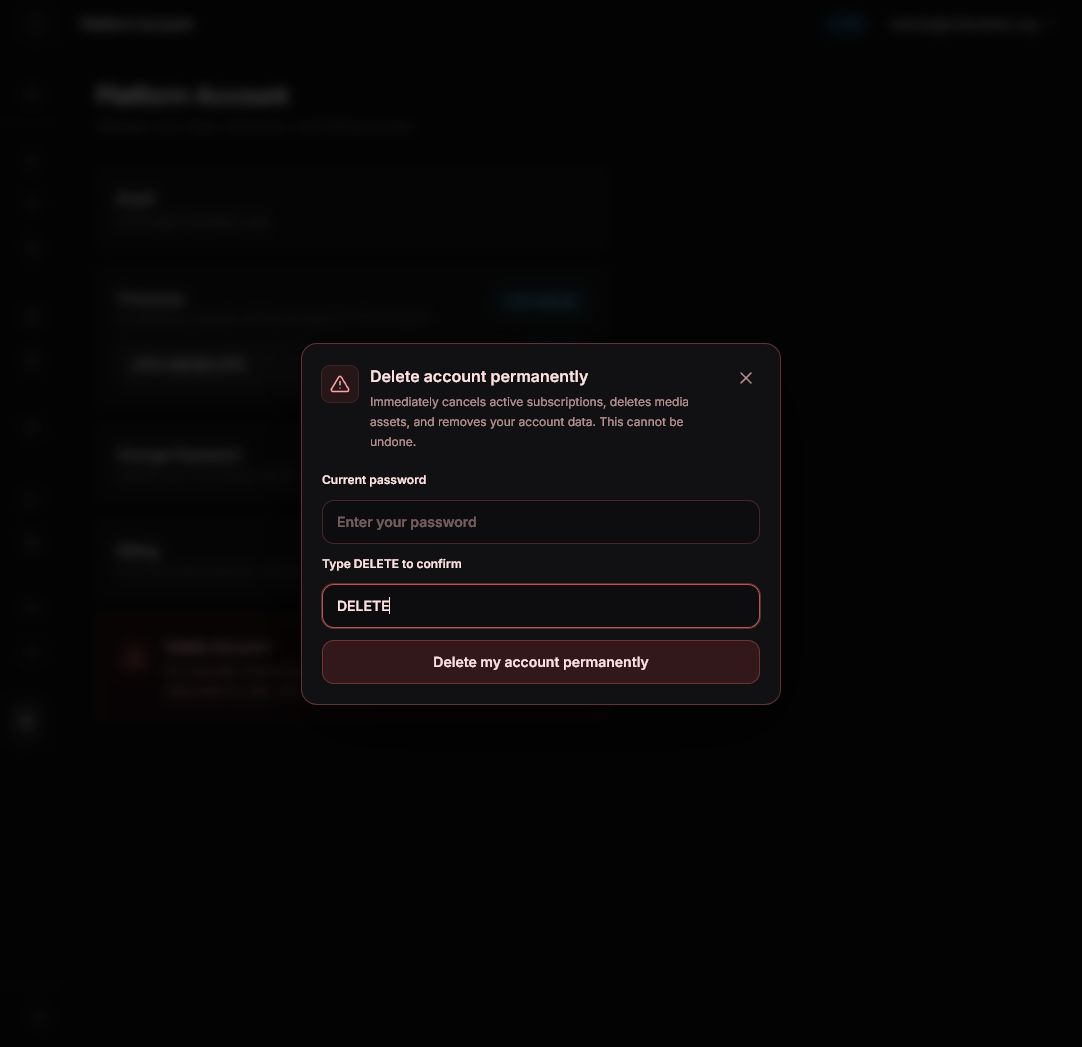
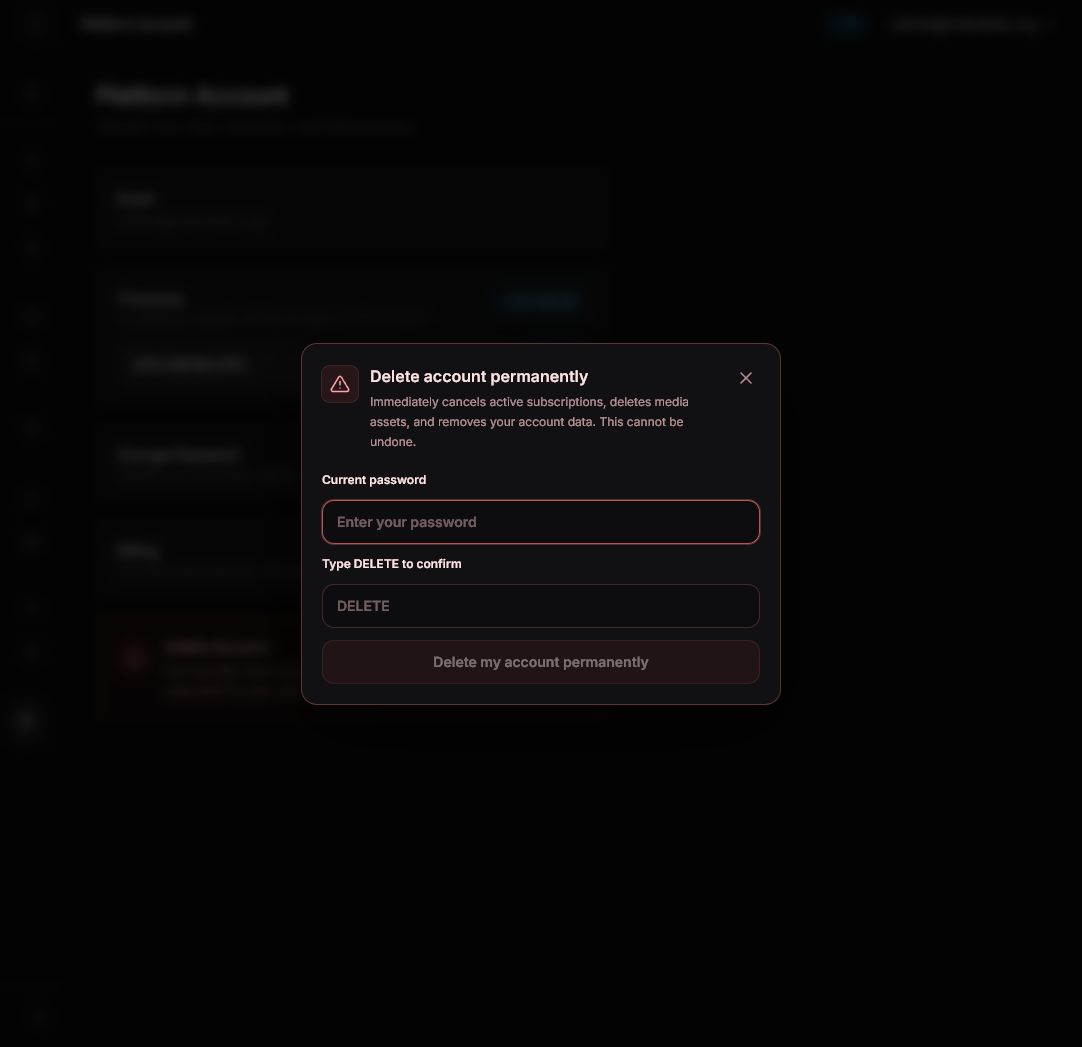
A confirmation dialog opens. Read the warning carefully: deletion cancels active subscriptions, deletes media assets, and removes account data. This action cannot be undone.
Step 4: Confirm deletion
Enter your current password, type DELETE in the confirmation field, then click Delete my account permanently. Do this only when you are ready for the account and data removal to happen immediately.
After the request succeeds, Videoblitz signs you out and sends you back to the login page.